QR Code Menu Not Working? Check Scanning, Links and Loading
Key Takeaway
Diagnose a restaurant QR problem in order: decode the print, test the destination, check mobile loading and readability, then repair and rescan.
Quick answer
First separate two failures: the camera cannot decode the printed symbol, or the code decodes but its destination fails. Type the decoded URL into a browser. If the URL works but the print will not scan, inspect size, contrast, damage and lighting. If the URL fails, check the address, permissions, hosting and any redirect service.
A QR opening a readable PDF can be functioning correctly. After scanning works, assess loading speed and readability as separate guest-experience checks.
Follow the symptom
| What happens | Likely area to inspect | First check |
|---|---|---|
| Camera finds no link | Printed symbol or camera conditions | Try another phone and a clear original print |
| Link appears, then an error or login | Destination or access control | Open that exact URL in a private browser |
| Works on Wi-Fi but not mobile data | Network, DNS or access differences | Repeat on another network and device |
| Menu opens slowly | Resource weight or server response | Measure a cold visit and inspect large images |
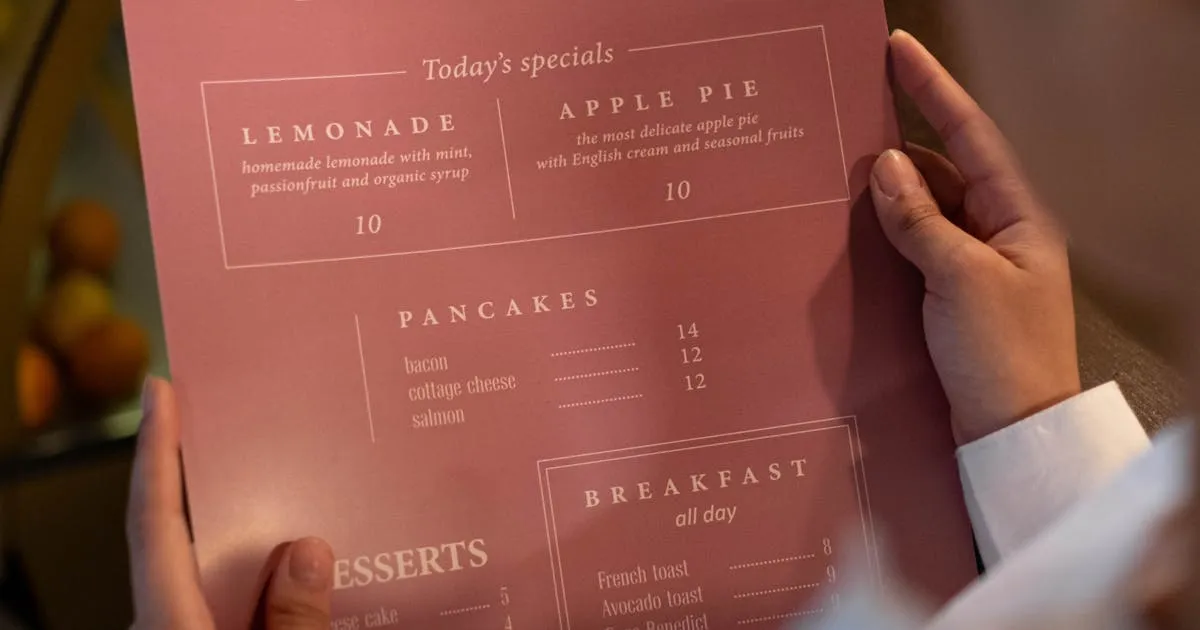
| Menu opens but is hard to read | Layout, text or file design | Test text enlargement and category navigation |
If the camera cannot read the code
Inspect the physical print for scratches, folds, stretched proportions, glare and nearby graphics. Use dark modules on a plain light background and keep the border clear. DENSO WAVE describes a four-module quiet zone around a standard QR symbol. A module is one of the small squares, not a fixed number of millimeters.
There is no universal printed size that guarantees scanning. Density, viewing distance, printer quality and lighting matter. Print a representative sample, try two phones in the actual location and increase the size if decoding is unreliable. A short destination usually needs a less dense symbol than a long tagged URL.
If necessary, regenerate the code from the verified URL with the QR generator. Compare the decoded address before printing replacements. Avoid a decorative logo covering more of the code than your tests can support.
If the destination fails
Copy the exact decoded URL, including its path. Open it privately without an owner login. A sharing page may work for you because your account has access while guests see a sign-in screen. Check whether the menu is published and whether the URL was renamed, removed or mistyped.
If a redirect service sits between the code and menu, check its account status and destination settings. Do not assume every dynamic-code provider has the same expiration policy. Static QR data has no subscription timer, but its destination can still disappear, require a login or suffer an outage.
If you control the old address, a correct redirect may preserve the printed code. Otherwise generate a replacement pointing to the working address and update every placement. The static/dynamic guide explains that distinction.
If loading is slow
Use a fresh private window on mobile data, then repeat on venue Wi-Fi. Note when item names and prices become readable, not just when every photo finishes. A fast repeat visit can hide the cost of a cold download.
Inspect oversized photos, eager image downloads, scripts and server response. The image optimizer can help prepare assets, but inspect the resulting quality and dimensions. A fixed page-weight target cannot guarantee a two-second load on every 4G connection. Test the revised page under the same conditions.
If the menu is difficult to use
Try larger text and a narrow phone viewport. Check for clipped prices, horizontal document scrolling, controls that are hard to tap and long category lists. A PDF may need layout changes or a responsive alternative; a web page can also have these faults. Compare the actual destinations with the PDF versus web menu guide.
Offer a readable paper menu or staff assistance. Do not infer a guest dislikes technology or will adapt within a fixed time. Connectivity, vision, device battery and preference can all affect the task.
Repair and verify one placement before the full batch
-
Record the failure
Write the location, exact decoded URL, device, network and visible error. Save a photo of the print if damage or glare may be involved. -
Repeat on another phone
Try another camera and browser. Enter the same URL manually to separate scanning from destination behavior. -
Repair the relevant layer
Replace damaged print, correct access/publishing settings, repair the controlled redirect or optimize the destination. Do not change a working QR solely because it opens a PDF. -
Test the actual replacement
Scan the printed sample under venue lighting. Read prices, browse categories and check an enlarged-text view on both devices. -
Update and schedule checks
Replace the affected placements, note the destination and review them after menu/hosting changes. A monthly opening-check reminder is a useful starting point, not a measured universal requirement.
Questions about this workflow
Can a static QR expire?
Why does the menu work for me but ask guests to sign in?
Should I reprint after changing prices?
Does a code opening a PDF need replacement?
What should I give a guest whose phone will not work?
Continue with the matching task
For creating a replacement menu, use the setup guide. For print placement, use the table-placement guide. For choosing software scope, use the seven-platform comparison.