Import a Restaurant Menu from CSV: Tested Menujo Guide
Key Takeaway
Prepare a menu spreadsheet, preview the rows, then import on Pro or Business. Follow a tested example with quoted descriptions, Arabic text and price checks.
What the import does
Menujo can add categories and items from a CSV spreadsheet on Pro or Business. Free users can preview a file, but importing requires a paid plan. The supported columns are Category, Item, Description, Price, Dietary and Featured. This workflow does not import photos, size variants, ordering settings or POS data.
The example below was tested October 10, 2026 in an isolated local Pro account using a fictional Cedar Cafe Demo menu. Three rows created three items in two new sections. No customer account or production menu was changed. The public page showed the quoted descriptions and the Arabic coffee price correctly.
New to Menujo? First follow the menu setup walkthrough. For a vendor migration, also check the GloriaFood closure guide; moving a menu spreadsheet does not replace ordering or payments.
Columns in the template
| Column | Example | How to check it |
|---|---|---|
| Category | Drinks | Section name; blank becomes Menu |
| Item | Mint tea | Required; rows without a name are skipped |
| Description | Fresh mint, hot water | Quote cells containing commas |
| Price | 3.50 | Verify the preview in the menu currency |
| Dietary | vegan; gluten-free | Only supported tags are retained |
| Featured | yes | Marks the item as featured; no leaves it ordinary |
Prepare a small file first
Download the editor's CSV template or this fictional cafe example. Keep one item per row. Save as a UTF-8 CSV so names in Arabic or other scripts remain readable. Spreadsheet exports can use commas, semicolons or tabs; the parser detects the delimiter from the first non-empty line.
The sample includes قهوة عربية with the price ٢٫٥٠, which previewed and imported as 2.50 in the menu's USD currency. The currency comes from the menu, not the symbol typed into a cell. Check all imported prices before publishing, especially thousands separators and currencies with more than two decimal places: prices are normalized to cents.
A description such as Fresh mint, hot water needs CSV quoting. Export from your spreadsheet rather than manually adding commas between every field. Never infer dietary or allergen suitability from a dish name; use verified ingredients and preparation information.
Preview and import
-
Open the menu editor
Choose the menu, then select Import items from a spreadsheet (CSV). You can download the template from this dialog. -
Choose your file
Select the UTF-8 CSV. The preview groups item names and prices by section. In this example it showed three items in two sections, including Arabic coffee at $2.50.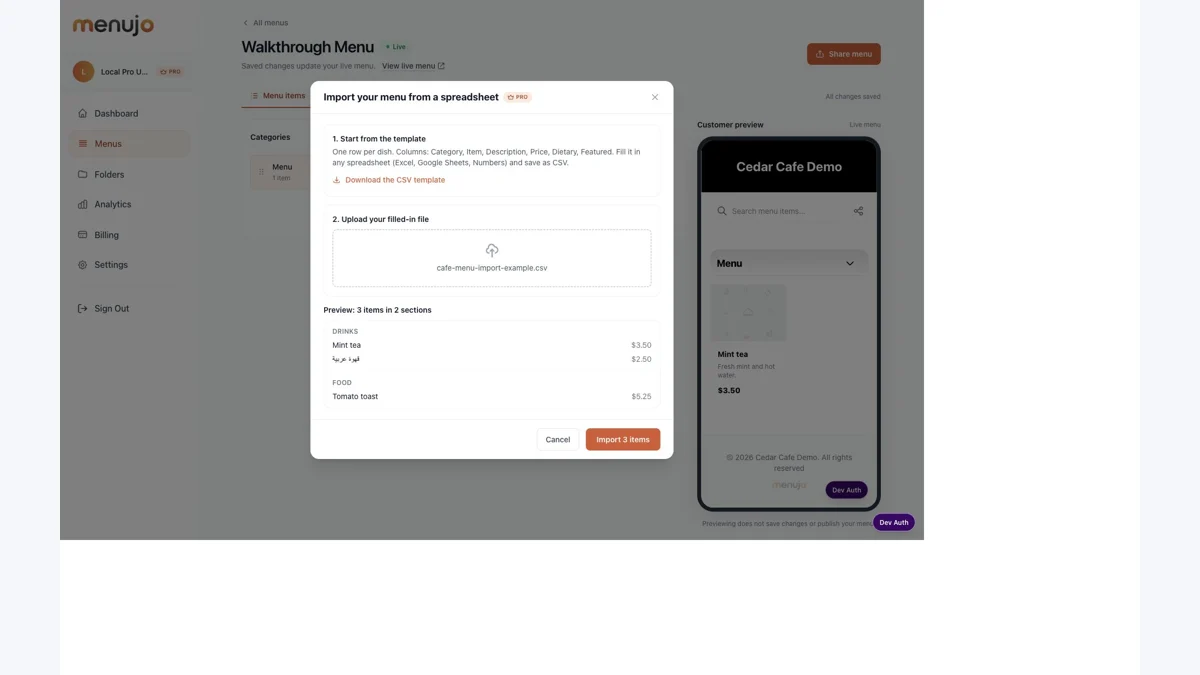
-
Review every warning
A missing item name skips that row. An unreadable price is left blank, and unknown dietary tags are dropped with an issue message. These warnings do not mean the whole file is rejected; correct the source and upload it again if needed. -
Import on Pro or Business
Choose Import only after reviewing the preview. A successful import reports the number of items and new sections. Plan limits still apply.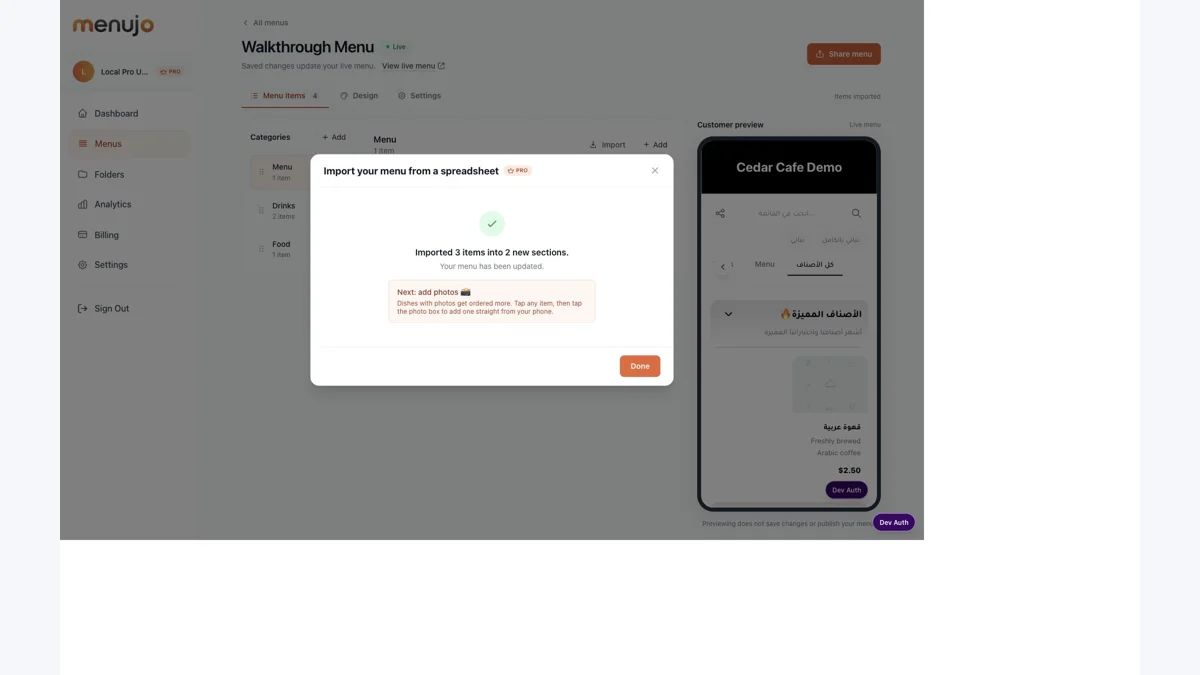
-
Inspect and complete the menu
Reload the editor and public menu. Check categories, names, descriptions, prices, tags and Featured state. Add photos and size prices in the editor where needed, then confirm publication.
What happens to existing items
Existing sections are reused by name, case-insensitively. If an item with the same normalized name already exists in that section, the import skips it. It does not update that item's price or description. A repeated upload is therefore not a bulk price-update workflow.
The same item name in a different section can create another item. In the local example, an existing Mint tea in Menu stayed there and the file created Mint tea in Drinks. Check your category names before importing if you want to avoid that result.
Import requires access to the menu, Pro or Business, and a file within the supported size and menu limits. If you hit a limit, reduce or reorganize the file within your plan or choose the appropriate plan. Splitting a file does not increase the total menu allowance.
Verify the result before sharing
Our local success message read Imported 3 items into 2 new sections. The public page then showed Mint tea at $3.50, Arabic coffee at $2.50 and Tomato toast at $5.25. The comma-containing descriptions remained intact. That is a bounded functional test, not a promise about every spreadsheet format.
Use the analytics guide after sharing the finished menu to understand what menu visits can measure. Import success itself does not prove menu views, QR scans, orders or sales.